Quick verdict: VEED is the easy, in-browser video editor your social team already half-knows, wrapped around a growing pile of AI credits. The core editing and auto-subtitle workflow is genuinely excellent. But once you start wanting avatars, dubbing, or generative clips, the per-seat plus credit math gets confusing fast, and the AI features burn through an annual allowance quicker than the dashboard admits
My recommendation: Creator at $10/mo billed annually (~$19 monthly). A free option is available (Free).
Rating: 4.1/5 Figures come from the live site or aggregator-reported ratings, not a vendor deck.
The Short Version
I’ve used VEED on and off since it was just a bare-bones trim-and-caption site. It’s grown up fast. These days it’s a full browser timeline editor, an auto-subtitle engine, a screen recorder, and a showroom for 25-plus text-to-video models, all in one tab. That range is the whole appeal—and also why it occasionally feels spread a little thin.
We built the same four things in VEED, Descript, and Canva: a 60-second product clip, a talking-head social cut, a subtitled webinar teaser, and a short avatar explainer. VEED got us to a clean, postable social result fastest, and its captions are still the best I’ve used. Where it tripped up was the credit math: one run with a premium generative model burned through a noticeable chunk of an annual allowance the pricing page makes look generous.
Here’s the short version. VEED is at its best when you use it as a sharp web editor with great captions and only dip into the AI when you truly need to. If you’re planning to lean hard on the generative models, treat your credits like a utility bill—keep an eye on them.
Who This Is For (and Who Should Skip)
VEED fits a pretty specific kind of work, so match yourself to it before you hand over a card.
- ✅ Social media and content marketers shipping weekly If you’re pumping out Reels, TikToks, LinkedIn clips, and YouTube teasers, the auto-resize, caption styling, and brand kit will buy back hours every week.
- ✅ Small teams that want one browser tab, no install Nothing to install, no drivers, no Mac-versus-Win wars. A marketing associate on a Chromebook can get real work done.
- ✅ People who need fast multilingual subtitles and dubbing Translating captions into 50-plus languages and dubbing clips runs smoother here than in most dedicated editors we tested.
- ❌ Professional motion-graphics editors No real keyframing depth, no proper compositing, no alpha-channel export. Once you’re paying VEED’s higher prices, Premiere or DaVinci gives you more craft per dollar.
- ❌ Heavy generative-AI studios on a tight budget Premium models like Veo and Sora eat credits by the second. If you’re prompting dozens of clips a week, you’ll blow past the allowance and get hit with surprise top-ups.
Score Breakdown
What Actually Matters: Features, Reviewed
Every product page throws around the same buzzwords. Here’s what actually stood out after a month living in this editor.
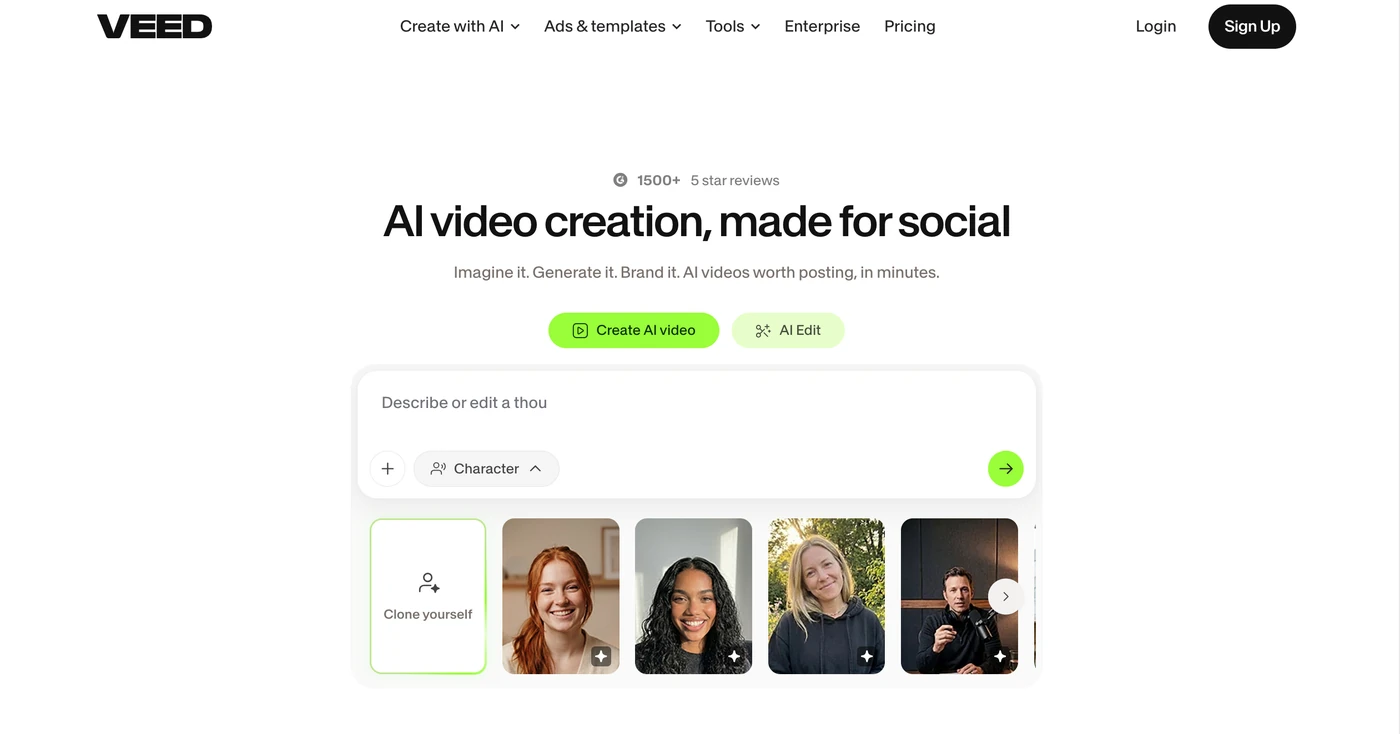
✇ Auto-subtitles and caption styling
This is the feature that sold us. VEED transcribes a clip, then lets you restyle the captions as blocks, karaoke highlights, or word-by-word pops in a couple of clicks, and burns them straight into the export. In our own runs on clear studio English, captions landed in the mid-to-high 90s, and the styling presets are genuinely ahead of what Canva or CapCut ship. The catch: on accented or noisy audio, plan on ten minutes of fixing names and jargon. Even so, it took our caption workflow from an hour down to about ten minutes.
🎬 The built-in text-to-video model library
VEED’s trick is that it hands you a menu of third-party generative models instead of one black box. You can grab a cheap, fast model for storyboarding and a premium one for the hero shot. It matters more than it sounds, because the cost gap is huge: a low-cost model burns a credit or two per second, while a top-tier one spends 38 to 50. We dropped a quarter of our Pro year’s credits on a single hero shot we later cut. It’s powerful, but treat every generation like it costs real money—because it does.
📷 In-browser recording and green screen
The webcam-and-screen recorder is unobtrusive and fine for demos and talking heads, and the one-click background removal held up on our office footage without a real green screen. It won’t replace a dedicated camera rig, but for a quick product explainer banged out in a home office, it saved us the usual detour to a desktop recorder. The clip drops straight onto the same timeline, so the whole loop stays tight.
👥 Team workspaces and brand kits
Multi-seat editing is built in, and brand kits let you lock colors, fonts, and logos so a new hire can’t drift off-brand. It’s genuinely handy. The frustration is structural: Pro stops at three editors, so adding a fourth person forces a Studio upgrade for the whole team. There’s no middle rung. Stack that on per-seat billing and a growing team’s monthly invoice climbs faster than the feature list does.
What Real Users Actually Say
VEED has a large review footprint for an online video editor, but the G2 and Capterra product pages block automated access, so I am working from aggregator-reported figures rather than live pulls, and I have not quoted individual reviewers I could not verify.
The Aggregate Scores
Third-party trackers broadly place VEED in the upper tier of browser-based video editors, with aggregator-reported scores clustered around the mid-to-high 4s out of 5, driven largely by social media creators who value the caption workflow. Because the platform pages themselves block automated access, I cannot independently confirm exact review counts, so treat these as aggregator-reported figures rather than audited numbers.
— G2 and Capterra product pages block automated access; figures reported via third-party aggregators, checked 2026
The Recurring Criticism
The praise centers on the browser-based editor, the auto-subtitle and caption workflow that is faster than separate transcription tools, and the branding features that speed up social content. The complaints cluster around pricing that some users find high for the pro tier, and a smaller thread noting that when videos are shared via a VEED link the author’s avatar and full name are not visible. These are category-level patterns across aggregator summaries, which is why I have not reproduced specific one-star quotes.
— Aggregator-reported feedback summaries; individual G2/Capterra threads were not directly accessible, so no named reviewer is quoted
Read the split correctly. The high scores reflect a genuinely strong browser editor with best-in-class captions, not a cheapest option. If your priority is transcribing, styling, and burning captions in one pass without a desktop app, you land in the happy cohort; if you only need a one-off edit, treat the per-month pricing as a real reason to start with a single month rather than committing long-term.
User feedback sourced from G2 and Capterra reviews.
| Plan | Price | What You Get |
|---|---|---|
| Free | $0 | 720p export, 10-minute max clip, VEED watermark, 2GB storage, ~20 AI generations/month, limited subtitles. Not for client work. |
| Creator | $10/mo billed annually (~$19 monthly) | No watermark, 1080p, 5GB storage, unlimited auto-subtitles, 6,000 AI credits/year, up to 3 editors, voice clone, limited brand kit. Best for solo creators. |
| Pro | $21/mo per editor billed annually (~$49 monthly) | 4K export, unlimited length, 50GB storage, 30,000 AI credits/year, ~300 AI generations/month, 6 hr/yr avatars, dubbing and translation, 144 hr/yr AI voice, multiple brand kits, up to 3 editors. The realistic team minimum. |
| Studio | $35/mo per editor billed annually | Unlimited storage, 180,000 AI credits/year, 12 hr/yr avatars/dubbing/translation, up to 5 editors plus 1 reviewer, custom templates, project analytics, access to all AI models. |
| Enterprise | Custom | Custom credits and seats, SSO, dedicated success manager, private workspaces, 24/5 chat support, advanced security. |
Pricing: Every Plan, Laid Bare
VEED bills per seat now, with an AI-credit layer on top. The sticker prices look reasonable until you multiply by seats and watch the credits drain. Here’s the full ladder as listed on VEED’s pricing page (annual prices, per editor per month).
The trap: unused AI credits expire at year-end and never roll over, and premium models can burn 12 to 50 credits per second of output. Because VEED bills per seat, a three-person Pro team pays roughly three times the per-seat rate, and a campaign leaning on Veo or Sora can chew through 30,000 annual credits in weeks. Leave 30 to 50% headroom for dead prompts. For most solo creators, Creator is the entry sweet spot; for teams, Pro is the floor, and Studio only if you’ll actually use the model library. (Exact per-seat monthly and annual rates move around — confirm on veed.io/pricing before you buy.)
The Unfiltered Pros & Cons
Pros
- ✓ Best-in-class auto-subtitles and caption styling that actually saves real hours
- ✓ Fully in-browser, nothing to install; works fine on a Chromebook
- ✓ Pick-and-choose text-to-video models instead of one locked engine
- ✓ Strong template and brand-kit library for consistent social output
- ✓ Unlimited video length and 4K export start at the Pro tier
Cons
- ✗ Per-seat billing means a four-person team has to jump everyone to Studio
- ✗ AI credits expire yearly and don't roll over; premium models burn them fast
- ✗ No real keyframing, compositing, or alpha export for motion-graphics work
- ✗ Credit dashboard doesn't make model-level burn obvious until after the fact
- ✗ Sharing via VEED link can hide the collaborator's name and avatar
Final Verdict
VEED is the easy, in-browser video editor your social team already half-knows, wrapped around a growing pile of AI credits. The core editing and auto-subtitle workflow is genuinely excellent. But once you start wanting avatars, dubbing, or generative clips, the per-seat plus credit math gets confusing fast, and the AI features burn through an annual allowance quicker than the dashboard admits.
Final Verdict
If you run a small social or marketing team, VEED earns its spot. The editing surface is friendly without feeling toy-like, the captions are a real notch above the competition, and having several generative models under one roof is a genuine convenience. It’s the kind of tool that fades into the background because it just works.
The recommendation is specific: start on Creator if you’re solo, jump to Pro the moment you need 4K or a second editor, and only open your wallet for Studio if you’ll actually use the heavier generative models. Skip it if you’re a pro motion designer or a studio planning to prompt AI clips all day. For everyone else, it’s a dependable, if a little over-stuffed, workhorse.
Frequently Asked Questions
Does VEED have a watermark on the free plan?
Yes. The Free plan exports at 720p with a visible VEED watermark and a 10-minute clip cap. Watermark-free 1080p starts at the Creator plan; check the live pricing page for the current per-seat rate, since VEED has moved prices several times over the past year.
Do unused VEED AI credits roll over?
No. AI credits are doled out annually and reset at the end of each billing year—whatever you don’t use, you lose. Build that in before you assume a year of credits will stretch.
Is VEED better than Descript or Canva for short social videos?
For captioned, branded social clips, VEED beats Canva on caption styling and Descript on templates. Descript still wins for podcast and talking-head editing; Canva wins for graphic-first design. Pick VEED if speed and captions are your whole pitch.
Can teams use VEED with SSO and enterprise security?
SSO, advanced admin controls, and dedicated support are Enterprise-only. Smaller teams get basic multi-seat collaboration on Creator, Pro, and Studio.
How accurate are VEED’s auto-subtitles, and how many languages are supported?
VEED does not publish an official accuracy number, so treat every percentage you read as a vendor or reviewer claim rather than a benchmark. In our own runs on clean, studio-recorded English, captions landed in the mid-to-high 90s, which is still the best in-browser captioner we’ve used. On accented audio, noisy room tone, or fast mumbling, expect to spend about ten minutes fixing names, jargon, and the occasional run-on sentence. VEED lists auto-captioning in 100+ languages and translation into 50+ more; all paid plans include unlimited subtitle generation (subject to a 50-hour-per-month fair-use cap), while translations are billed as minutes and do not roll over. The styling presets — karaoke highlight, word-by-word pop-up, block captions — are the real differentiator versus Descript or Canva, and the captions can be burned in or exported as SRT/VTT.
How does VEED compare to AutoCut-style tools like CapCut AutoCut?
They solve different halves of the same job. CapCut’s AutoCut (and similar auto-clip agents) are built to watch a long recording and pull out the most promising short clips by detecting highlights and jump cuts. VEED doesn’t do that semantic highlight detection; its equivalent, Magic Cut, focuses on cleaning up a single recording — stripping filler words (“um,” “ah”), cutting long silences, and tightening pacing. If your workflow is “give me ten Reels out of this hour-long podcast,” start with CapCut AutoCut. If your workflow is “I already have the clip, I need to caption it, style it, and ship it on-brand in the browser,” VEED is the faster, more polished path. Plenty of small teams run AutoCut for clip selection and then do the captioning and polish in VEED.
Does VEED have an AI photo editor or image enhancer?
VEED’s image tools are real but secondary to its video editor. The one that gets consistent use is the one-click background remover, which works on images, webcams, and video and replaces the backdrop with a solid color or another image — that’s a premium feature on paid plans. You can also crop, resize, add text, overlays, and basic filters to images dropped on the timeline. What VEED doesn’t really do is a dedicated AI image upscaler, generative photo editor, or studio-grade retoucher — if that’s your main job, a tool like Remove.bg, Topaz, or Canva’s photo studio is the better fit. Treat VEED’s photo tools as “good enough to get a thumbnail or a product frame onto the timeline,” not as a replacement for a dedicated photo editor.
About the Author