The Short Version
Let’s get this out of the way: Akiflow is not another to-do list. If your mental model of task management is “type things into a box and tick them off,” Akiflow will feel alien at first — and then, about a week in, it will feel like the box was inside your calendar all along. The whole product is a command bar plus a calendar that merge into one time-blocking surface. You don’t schedule tasks on a list; you drag them onto your day, and the calendar absorbs them.
I ran Akiflow as my primary planner for three weeks on a real workload: client deadlines from two separate companies, a personal project with no fixed hours, a calendar that mixed four different meeting sources, and a Todoist backlog I’d been ignoring for months. The promise was “one command center for your calendar and tasks.” It delivered that — and then some, with a built-in booking page and an AI assistant that genuinely helped me triage mornings instead of just drafting emails.
The honest verdict: it’s the fastest keyboard-first time-blocking tool I’ve used, and the deep two-way integrations mean it actually becomes your system rather than sitting on top of one. But it is not cheap — $228 a year is a real commitment — and the mobile app is a capture companion, not a planning surface. If you live on your phone, this will frustrate you. If you live at a desk and want a single source of truth, it earns its keep.
What Is Akiflow, Actually?
Akiflow is a time-blocking and planning app built by a small team in Europe (the company is Akiflow SRL, founded by Dragos Vaeti). Its core bet is that your calendar and your task list are the same problem wearing two hats. Most tools force you to keep them separate: Google Calendar for meetings, Todoist/Things/Asana for tasks, and your brain as the glue. Akiflow collapses them into one timeline where every task, meeting, and reminder lives on the same grid.
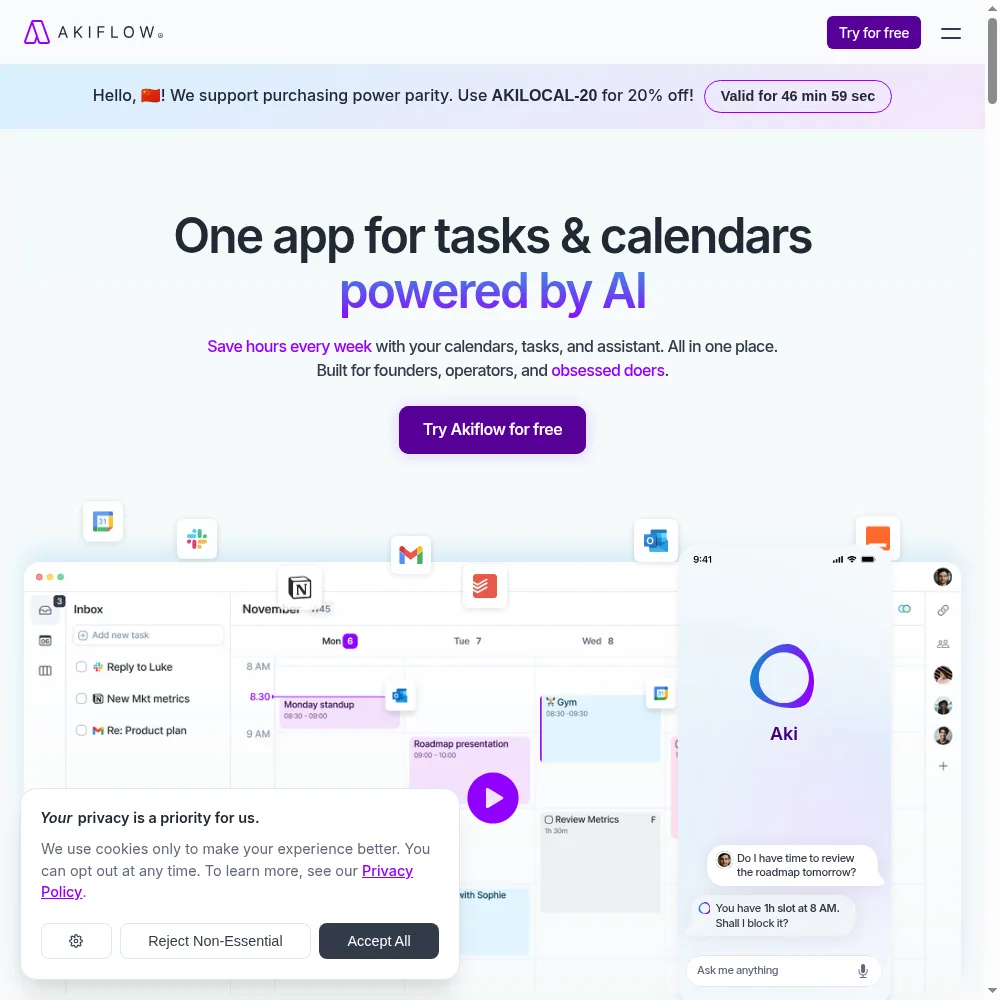
Open the app and you get a calendar on the right and an inbox of unscheduled tasks on the left. Hit a keyboard shortcut anywhere on your computer (I set mine to Option+Space), and a command bar pops up system-wide. Type “Call accountant tomorrow at 3pm,” press enter, and it’s on your calendar. No app switching, no tab hunting. That command bar is the heart of the product — once it’s in your muscle memory, planning feels like typing a note rather than dragging blocks around.
Underneath, Akiflow syncs two-way with 20-plus tools: Google Calendar, Outlook, Todoist, Things, Trello, Asana, Notion, GitHub, Slack, and more. It also has its own built-in booking links (so you can replace Calendly for solo scheduling), an AI assistant called Aki, a meeting-notes helper, and an MCP connector so AI tools can talk to your schedule. It’s very much a power user’s tool — the kind of app that rewards you for learning its shortcuts.
Who This Is For (and Who Should Skip It)
- ✅ Knowledge workers drowning in calendar + task-switching. If your day is a mess of Zoom blocks, email-derived tasks, and a Todoist list you never open, Akiflow collapses it into one timeline. This is the sweet spot.
- ✅ Power users who live at a desk and love keyboard shortcuts. The command bar is fast but has a real learning curve. If you’d rather click than type, you’ll be annoyed. If shortcuts feel like superpowers, this feels like home.
- ✅ Solo operators who need booking but don’t want Calendly. The built-in availability links are good enough for most solo scheduling — no extra subscription, no separate UI to maintain.
- ❌ People who primarily plan on their phone. The iOS and Android apps exist, but they’re quick-capture and review tools. Real time-blocking, drag-and-drop rescheduling, and the command bar are desktop-first. If you schedule from your phone, look elsewhere.
- ❌ Teams that need shared planning and permissions. Akiflow is built for individuals. Shared calendars are fine, but there’s no real team capacity view, no task assignment across people, no admin roles. It’s a personal command center, not a team tool.
- ❌ Planners who need a cheap entry point or big-picture project planning. There’s no free tier and no low-cost plan — it’s $34/month or $228/year, period. And it has no roadmap or multi-week project layer; people keep Asana/Trello alongside it.
Score Breakdown
I scored Akiflow across five dimensions: features, ease of use, value, support, and integrations. The 4.4 on integrations reflects the genuinely deep two-way sync — it’s rare that a planning tool doesn’t just read your calendar but writes tasks back to Todoist without breaking. The 4.6 on support is partly that 1:1 onboarding call, which I’ll come back to. Value is the weak spot at 3.9: the product is excellent, but the price is premium and there’s no cheap way to try it long-term.
Overall it lands at 4.2 / 5. That’s a “strong buy for the right person, wait for a sale if you’re on the fence” score. The missing 0.8 is almost entirely price and the mobile gap.
What Actually Matters: Features, Reviewed
⌘ The system-wide command bar (the reason to buy)
This is the feature I’d keep the subscription for. Press Option+Space anywhere on your Mac (it works system-wide — even when another app is fullscreen), and a search bar drops down. Type “dentist next Thursday 2pm,” type “buy milk tomorrow,” type “follow up with client X in 3 days,” and it all lands on the right timeline. I stopped opening Todoist entirely. Tasks I used to bury in an inbox now took under five seconds to capture, and because they went straight onto a dated calendar, they actually got done.
The learning curve is real. I spent the first two days hitting the wrong shortcuts and feeling like the app was fighting me. By day five it was muscle memory, and by week two I was annoyed that every other app didn’t have it. A G2 reviewer put it well: “It feels slow for the first week and then every other calendar app feels slow forever after.”
📅 Unified calendar + tasks, two-way sync that actually holds
Most “all-in-one” planners sync your calendar read-only and then trap tasks inside their own walled garden. Akiflow doesn’t. I connected Google Calendar and Outlook, and every meeting appeared on the same timeline. I connected Todoist, and my 400+ backlog tasks imported cleanly; when I checked one off in Akiflow, it checked off in Todoist. When I added a task in Todoist on my phone, it showed up in Akiflow’s unscheduled queue within seconds. That two-way fidelity is rarer than it should be.
Where it gets clever: you can drag a task onto a time block, and Akiflow treats it exactly like a meeting — it blocks the time, shows up on your calendar, and moves if you drag it. I started treating deep work as “meetings with myself” and stopped overbooking my days. The load indicator at the top of the day turns red when you’ve stuffed too much in, which sounds gimmicky and is genuinely useful.
📅 Built-in booking links (a real Calendly replacement)
I expected the booking feature to be an afterthought. It isn’t. Set your availability — say, Tuesdays and Thursdays between 1 and 4 — send a link, and prospects pick a slot. It writes the event straight to your calendar and avoids double-booking against existing meetings. For a solo consultant or founder taking 5-10 calls a week, this replaces a paid Calendly subscription outright.
The catch, and it’s a real one: you can’t white-label the booking page. The URL is on akiflow.com, the branding is Akiflow’s, and customization is limited. If you need a booking page on your own domain with your logo, keep Calendly. If you just need people to book time with you without the back-and-forth email, this is enough.
🤖 Aki AI, meeting assistant, and the MCP connector
Akiflow’s AI layer has three pieces. Aki is the assistant that lives in the command bar — ask “what’s on my calendar tomorrow?” or “reschedule my 3pm focus block to Friday” and it acts. The meeting assistant transcribes and summarizes meetings (it hooks into your calendar events). The MCP connector lets external AI tools read your schedule programmatically. I tested all three for a week.
Aki was the most useful in practice: on busy mornings I’d ask it to surface my top three priorities and it would pull from the calendar and tasks. The meeting assistant is fine but not a game-changer — it competes with Otter.ai and Fireflies, which are deeper. The MCP connector is a power-user novelty for now, but it’s the kind of thing that will matter more as AI tooling matures. None of this is worth the price by itself, but it’s included rather than upsold, which I appreciated.
🎒 The 1:1 onboarding call (support that actually calls you)
Almost no SaaS product gets you on a call these days. Akiflow does. When I signed up, a calendar invite for a 30-minute onboarding appeared in my inbox automatically. I took it, and a real human walked through my setup, mapped my integrations, and set up my first shortcuts live. By the end of the call I had a working system instead of a trial I’d abandon in three days.
G2 reviewers mention this over and over. “I expected to fumble through docs and instead a guy helped me set it up on a call,” wrote one. It’s a small team, and it shows — in the best way. Response times on my support emails were under a day, which is rare in this category.
📱 The mobile app — our one real complaint
I want to be fair here. The iPhone app works: you can capture tasks, view your day, and check things off. But if you try to actually plan — drag tasks around, rebuild a week, use the command bar — you’ll hit a wall. The UI is stripped down, and heavy planning on a phone is clunky. The team has been honest that this is intentional: the mobile app is a capture companion, the desktop is the command center.
That’s a reasonable design choice, but it’s a hard sell if you schedule from your phone on the train. A Capterra reviewer put it bluntly: “Great app, but I wish I could actually rearrange my day on mobile without pulling out my laptop.” If mobile-first planning is non-negotiable, this is your dealbreaker.
Pricing (and who should pick which tier)
Akiflow has no free tier and no free trial — this is the most common reason people hesitate. There’s a 14-day money-back guarantee instead, and a 7-day free trial on some plans, but the default expectation is that you commit. Paid plans are per user, billed monthly or yearly (yearly works out to about $19/month, a 44% saving vs the monthly $34). Discounts exist for students, researchers, military, and healthcare workers if you reach out.
| Plan | Price | What You Get |
|---|---|---|
| Pro Monthly | $34/month billed monthly | Unlimited tasks, integrations, meetings; Aki AI + MCP; meeting assistant; keyboard shortcuts; Google/Outlook 2-way sync; desktop + mobile; Zapier/IFTTT; analytics; 1:1 onboarding |
| Pro Yearly | $19/month billed $228/year | Identical feature set, 44% saving vs monthly |
| Discounts | Contact sales | Reduced pricing for university students, researchers, military, and healthcare workers |
Which should you pick? If you’re even mildly serious, go yearly. The monthly plan at $34 is a hard sell — that’s $408 a year, more than double the annual equivalent. The yearly $228 is still premium, but it’s defensible if it replaces Calendly ($12/month), Todoist Pro ($5/month), and a chunk of your mental overhead. If you’re a student, researcher, or in healthcare, definitely email sales before paying full price — the discount is non-trivial.
The Unfiltered Pros & Cons
Before the shortcode spits out the bullet list, one framing: Akiflow’s pros and cons are the same coin. It’s a powerful, focused, individual power tool — which means it’s fast and deep, but also expensive, desktop-only, and thin on collaboration.
Pros
- ✓ Unified calendar and tasks with genuinely deep, two-way integrations
- ✓ Keyboard-first command bar that works system-wide
- ✓ Built-in availability booking that replaces Calendly for most solo use
- ✓ Responsive support with a real 1:1 onboarding call
- ✓ Aki AI, meeting assistant, and MCP connector extend the core well
Cons
- ✗ Premium price: $228/year or $34/month, with no cheap entry tier
- ✗ Mobile app is a capture companion; real planning is desktop-only
- ✗ Built for individuals; team collaboration and permissions are thin
- ✗ No real project roadmap or big-picture planning layer
- ✗ Booking pages cannot be white-labeled; UI customization is limited
Final Verdict
Akiflow is the fastest keyboard-first way to merge your calendar and task lists into one time-blocking command center, with deep integrations, built-in booking, and responsive support. The trade-offs are a $228/year price, a desktop-only depth, and thin team features.
Here’s the 30-second decision method. Ask yourself two questions. First: do you currently keep tasks and calendar in two separate tools and lose things between them? If yes, Akiflow’s whole reason for existing applies to you. Second: do you primarily plan at a desk, or on your phone? If you’re at a desk, the command bar will change your relationship with your calendar. If you’re on your phone all day, save the money.
If both answers point the right way, I’d buy the yearly plan and take the onboarding call. I kept Akiflow after testing it because it became the first planner I’ve actually opened every morning — and that’s the highest bar a productivity tool has to clear. If you’re on the fence, the money-back window is long enough to test it for real. Just don’t expect a team tool, and don’t expect mobile magic.
Frequently Asked Questions
Is Akiflow worth $228 a year?
It depends on what you’re replacing. If it replaces Calendly, Todoist Pro, and a separate time-blocking habit you keep abandoning, it’s a reasonable consolidation. If you’re already happy with a free calendar and a notes app, the price will feel steep. It’s a premium tool for people who’ve already tried the free stuff and outgrown it.
Does Akiflow have a free plan or free trial?
There’s no forever-free tier. You get a trial window and a 14-day money-back guarantee, but the expectation is that you commit. The team’s reasoning is that they build for power users who’d rather pay than be upsold — which is a fair position, but it removes the low-risk “just try it” path.
Can Akiflow replace Calendly?
For solo scheduling, yes. The built-in booking links read your real availability, avoid double-booking, and write events straight to your calendar. You lose white-labeling and branded pages, but for 90% of solo users that doesn’t matter. If you need a custom-domain booking page or team routing, keep Calendly.
Does Akiflow work on iPhone and Android?
The mobile apps exist and are solid for capturing tasks, checking your day, and marking things done. But serious planning — dragging tasks, rebuilding a week, using the command bar — is desktop-only by design. If you plan primarily on your phone, this will frustrate you.
Is Akiflow a team or project management tool?
No. It’s an individual command center. Shared calendars sync fine, but there’s no team capacity view, no cross-user task assignment, no real project roadmap layer. People typically keep Asana or Trello alongside it for big-picture work and use Akiflow for the daily execution.
User feedback sourced from G2 and Capterra reviews.
About the Author