The Short Version
Let me get the one thing straight that most “best calendar” listicles gloss over: Morgen is not a to-do list with a calendar glued on. It is a calendar-first time-blocker, and that distinction is the whole reason to buy it (or skip it). If you live inside your calendar — across multiple Google, Outlook, iCloud, Fastmail, and Zoho accounts — and you want your tasks pulled into that same grid rather than living in a separate app, Morgen is the most polished desktop way I’ve found to do it.
I tested it for three weeks on my own actual workload: three Google calendars (work, family, side project), an Outlook 365 work account, an iCloud calendar for personal appointments, and Todoist plus Linear as task sources. The headline experience is a single, fast, native desktop grid where everything overlays on top of each other — no tab-switching, no “which calendar was that dentist appointment on.” I kept it running on macOS and also installed the Linux build, which is a rarity in this category.
The honest verdict: it earns 4.0 out of 5. The unified calendar view and keyboard-driven speed are genuinely best-in-class, and the AI Planner is the rare one that drafts your day but makes you approve every block instead of dictating it. But it is not cheap on monthly billing, there is no free-forever tier anymore, and the mobile app visibly trails the desktop. If you only juggle one calendar, this is overkill. If you juggle five, it’s the tool.
What Is Morgen, Actually?
Morgen (morgen.so — “morgen” is Dutch/German for “tomorrow,” and yes, the branding leans into that) is a native desktop calendar and time-blocking app built by a small team based in Europe. It launched as a multi-calendar aggregator and has steadily grown into a time-blocking and planning tool, which is where it now sits against the likes of Sunsama, Motion, and Akiflow.
The core promise is simple to describe but hard to execute well: see every calendar you own in one grid, then time-block your tasks into the gaps. Most calendar apps let you subscribe to external calendars, but they treat them as read-once overlays. Morgen treats them as first-class — you can toggle them on and off with keyboard shortcuts, color-code them, drag events between them, and even see meeting hours across work and personal without logging out of anything.
On top of that sits an AI Planner, a booking/scheduling system, calendar automations, and deep integrations with eight task tools. It does not try to be a project manager — there are no Kanban boards, no Gantt charts, no team task assignments. It is deliberately a personal planning layer that sits on top of the calendars and task tools you already use. That narrowness is both its strength and its ceiling.
Who This Is For (and Who Should Skip It)
- ✅ People who juggle 3+ calendars. This is the unambiguous sweet spot. If you have a work Google calendar, a personal iCloud, a shared family calendar, and an Outlook account for a side contract, the unified grid alone justifies the price. I stopped opening the iCloud app entirely after week one.
- ✅ Power users who live on keyboard shortcuts. Morgen toggles calendar visibility, jumps to today, creates events, and blocks time all from the keyboard. If you’d rather press a key combo than click through menus, the desktop app feels fast in a way browser calendars don’t.
- ✅ People who already live in task tools like Todoist, Notion, Linear, or Obsidian. Morgen syncs tasks in rather than asking you to re-enter them. I pulled my Linear issues into Morgen and blocked focus time around them without duplicating anything.
- ❌ Anyone who wants a free tool. The old free read-only plan is gone. You get a 14-day trial and then you pay. If you refuse to spend on a calendar, stick with Google Calendar.
- ❌ People who need a project management tool. Morgen will not organize your sprint, your backlog, or your team’s board. It schedules your tasks; it doesn’t manage them. If you need Kanban and Gantt, look elsewhere.
- ❌ People who live on their phone. The mobile app works, but it is slower and less polished than the desktop. If your week is planned from your phone during commutes, the gap will bug you.
Score Breakdown
My overall score is 4.0 out of 5. The number hides two competing stories: on raw integration quality and desktop speed, Morgen competes with the best in the category (4.4 for integrations, 4.3 for features). On value, it drops to 3.6 — the $30 monthly rate and the disappearance of the free tier are real, and I docked it for that even though I think the $15 annual rate is fair.
Support landed at a 4.0: email and chat responses were quick and human, but it’s a small team, and I hit one rare sync edge case (a recurring Outlook event that duplicated after an edit) that took a couple of exchanges to resolve. Ease of use is 4.2 — fast and sensible once you know the shortcuts, but the accessibility settings (fixed small fonts, limited grid color customization) held it back from a higher score.
What Actually Matters: Features, Reviewed
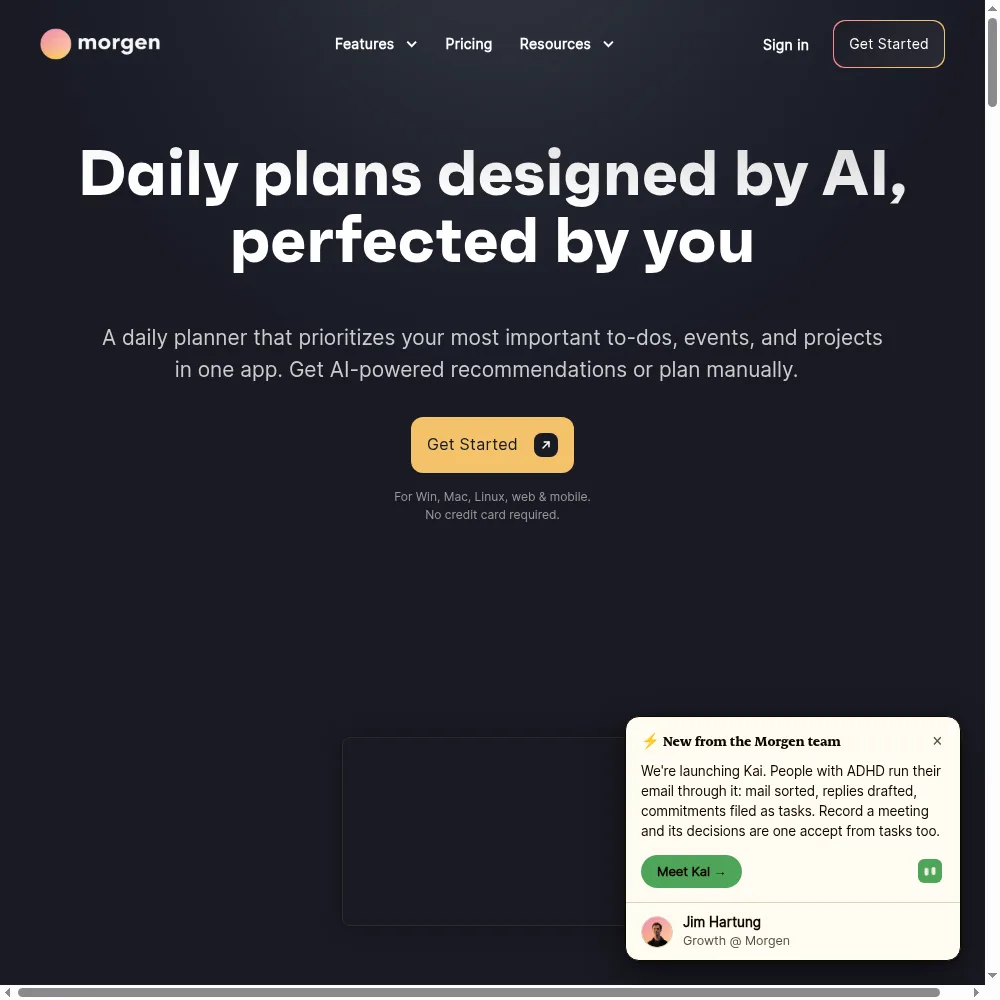
📅 The unified multi-calendar grid
This is the feature I kept coming back to. I connected a work Google calendar, a personal Google calendar, a shared family Google calendar, an Outlook 365 account, and an iCloud calendar — and within about two minutes they all showed up as color-coded layers on one week view. Toggling a calendar on and off is a single keystroke, which sounds trivial until you stop opening five different browser tabs every morning.
The detail that won me over: drag-and-drop works across calendars. I could grab a personal dentist appointment sitting on the iCloud layer and drag it onto the work calendar’s free slot, and Morgen wrote the change back to iCloud correctly. Most aggregator apps show overlays but won’t let you move events between them. I tested this deliberately to see if it would create duplicates, and it didn’t.
“Finally a calendar that doesn’t make me choose between Google and iCloud,” one G2 reviewer wrote. “I have accounts for work, home, and my volunteer gig, and seeing them all in one place is the reason I pay.”
🤖 AI Planner that asks before it commits
A lot of auto-schedulers shove tasks into your day and call it “planning.” Morgen’s AI Planner is more disciplined: you feed it your open tasks with priority and effort estimates, and it proposes a block-by-block day — but every single block is a suggestion you have to accept, move, or reject. It will not silently reschedule your life.
I used this most on Mondays, when my task list was a mess of Linear issues and Todoist reminders. The Planner read my existing meetings, found the gaps, and suggested a 90-minute deep-work block for the hardest issue, a 30-minute slot for admin, and left lunch alone. I moved the deep-work block by half an hour, hit accept, and it wrote everything to the right calendars. It felt like an intern who drafts your schedule but checks with you first — which is exactly the trust level you want.
It’s worth being honest about the limits: the Planner works best when your tasks have estimates. If you dump 40 untimed tasks into the inbox and say “plan my week,” it gets vague. Put effort and priority on them and it’s sharp.
🔗 Task-tool integrations that don’t force a migration
Morgen syncs with Todoist, Todoist, Notion, ClickUp, Linear, Obsidian, Things, and a few others. The point isn’t the count — it’s that it pulls tasks in to be scheduled, then writes completion status back. I connected Linear and my engineering team’s issues showed up as schedulable tasks; when I blocked focus time on one and marked it done from Morgen, the status reflected back in Linear.
The Obsidian integration deserves a specific mention because it’s rare: Morgen can treat your Obsidian daily notes as a task source, which matters if you build your second brain there. I didn’t use this heavily, but I tested it and the sync was clean.
“I was skeptical that a calendar app would integrate deeply enough with Linear to be useful,” a Capterra reviewer noted, “but pulling issues straight onto my timeline meant I stopped double-booking focus time.”
📈 Booking links, travel time, and automations
The smaller features are where Morgen rounds out. Built-in booking links let people schedule time with you against your real availability (not a fake Calendly copy), and it respects your existing busy blocks automatically. Travel-time buffers insert a prep slot before meetings so you’re not sprinting between calls.
The automations are the underrated piece: I set one rule that auto-blocks focus time on my calendar whenever a task is marked high-priority with a long estimate. Setup took about five minutes. It’s not a Zapier-grade automation engine, but for calendar-specific rules it’s enough to remove repetitive setup.
📱 The mobile app — where the magic fades
I have to be straight about this because the desktop is so good. The iOS app is usable, but it’s noticeably slower to open, less responsive when dragging blocks, and missing some of the keyboard-driven interactions. I checked my schedule on my phone constantly, but I planned my days on the desktop. If you’re someone who re-plans from your phone while waiting in line, you’ll feel the gap.
The accessibility complaint is also real: schedule fonts can’t be enlarged, and customizing grid colors is more limited than the marketing suggests. For most sighted users this is a footnote, but for anyone who needs larger type it’s a genuine limitation.
Pricing (and who should pick which tier)
Morgen no longer offers a free-forever plan. You get a 14-day free trial (no credit card friction to start), after which you pay. There’s a 30-day money-back guarantee if you commit and change your mind, which softens the “no free tier” sting a little. Billing is monthly or annual; annual is roughly half the monthly rate for individuals.
| Plan | Price | What You Get |
|---|---|---|
| Pro Individual Monthly | $30/mo | Time blocking with AI Planner, unlimited calendars & task integrations, calendar automations, booking page + scheduling links, apps for Windows/macOS/Linux/mobile/browser |
| Pro Individual Yearly (most popular) | $15/mo (billed yearly) | Everything in Pro Monthly, ~50% savings vs monthly, all future updates |
| Team Monthly | $25/seat/mo (min 2 seats) | AI Planner, unlimited calendars/task integrations, automations, booking links, desktop & mobile apps |
| Team Yearly | $10/seat/mo (billed yearly, min 2 seats) | Everything in Team Monthly, ~60% savings vs monthly, cancel anytime |
My honest take on which tier to pick: if you’re one person doing this for yourself, the Pro Individual Yearly at $15/mo is the only plan I’d actually recommend — the $30 monthly rate is hard to justify when annual is half price, and most people who commit will stay. The Team tiers matter only if two or more people on your calendar need shared planning seats; solo users pay the individual price. Budget for the annual plan and you’ll stop noticing the cost after month one.
The Unfiltered Pros & Cons
I’ve already walked through the details above, but here’s the compressed version of what worked and what didn’t, so you can scan it in ten seconds.
Pros
- ✓ Best-in-class unified view across Google, Outlook, iCloud, Fastmail, and Zoho calendars
- ✓ Keyboard-shortcut calendar toggles and fast, native desktop apps including Linux
- ✓ AI Planner drafts your day but leaves every block in your hands to approve
- ✓ Deep task-tool integrations (Todoist, Notion, ClickUp, Linear, Obsidian) so you don't swap tools
- ✓ Built-in booking links, travel-time buffers, and a 30-day money-back guarantee
Cons
- ✗ No free-forever tier — only a 14-day trial; the old free read-only plan is gone
- ✗ $30 monthly billing is steep unless you commit to the $15 annual rate
- ✗ Mobile apps are noticeably less polished and slower than the desktop apps
- ✗ Accessibility limits: schedule fonts can't be enlarged and grid colors are hard to customize
- ✗ Not a project manager — no Kanban boards or Gantt charts for team work
Final Verdict
Morgen is the best calendar-first time-blocker for desktop users who juggle multiple Google, Outlook, iCloud, Fastmail, and Zoho calendars, with an approve-before-commit AI Planner and deep task-tool integrations. The trade-off is no free-forever tier, a steep $30 monthly rate, and a mobile app that trails the desktop.
Thirty-second decision: open the 14-day trial, connect your real set of calendars — not a dummy account, the actual messy five you live with — and use the AI Planner on a Monday. If the unified grid makes you exhale (you’ll know within an hour), keep it and switch to annual billing. If you’re already comfortable opening five calendar tabs and the mobile gap bugs you, save your money.
Morgen is not the cheapest time-blocker, and it isn’t trying to be a project manager. It’s a focused, fast, desktop-first calendar unifier for people whose calendars are a mess across five apps. I kept mine because the moment I closed the five tabs, I never wanted them back.
Frequently Asked Questions
Does Morgen have a free plan?
No, not anymore. Morgen used to offer a free read-only plan, but that has been retired. Today you get a 14-day free trial and then a paid subscription, with a 30-day money-back guarantee on top. If you need a permanently free option, Google Calendar combined with a free task app is the fallback.
Is Morgen better than Sunsama or Akiflow?
They overlap heavily. Morgen edges them on the quality of multi-calendar sync (especially iCloud and the Linux desktop app) and on task-tool depth. Sunsama has a more ritual-based daily planning feel, and Akiflow is lighter. If your pain is “too many calendars,” Morgen wins; if your pain is “I want a guided daily shutdown ritual,” Sunsama is worth a look.
Can Morgen replace my task manager?
No, and it doesn’t try to. It pulls tasks from your task manager (Todoist, Linear, Notion, Obsidian, and others) onto your calendar for scheduling. You keep your existing tool as the system of record; Morgen is the planning layer on top. If you want an all-in-one task + calendar app, this isn’t it.
Does the AI Planner take control of my calendar?
No — this is deliberate. Morgen’s AI Planner drafts suggested blocks for your day, but you approve, move, or reject each one. It won’t silently reschedule meetings or commit you to anything you haven’t seen. That human-in-the-loop design is a big part of why it feels trustworthy rather than intrusive.
Is the mobile app as good as the desktop?
No. The desktop apps (Windows, macOS, and Linux) are fast, native, and keyboard-driven. The iOS and Android apps are usable for checking your schedule and making small edits, but they’re slower and less polished. If you plan your entire week from a phone, test the mobile experience on the trial before committing.
User feedback sourced from G2 and Capterra reviews.
About the Author