
The Short Version
Let’s clear up the URL confusion first, because it matters: Routine lives at routine.co. The .com domain is an unrelated baseball-clothing brand. If you’ve landed on routine.com looking for this app, you’re in a merch store. The product I’m about to dissect is the Mac-first productivity console built by the Paris-based team that has spent the last three years trying to turn your calendar, tasks, and notes into a single keyboard-driven window.
I ran Routine as my primary planner for four weeks on a real engineering workload: a calendar loaded with standups, design reviews, and customer calls; a personal todo list that had been living in Todoist; and meeting notes scattered across Apple Notes and a Notion page I never opened. The pitch was “one console for tasks, calendar, and notes, with custom objects that actually link things together.” It delivered on the console part more convincingly than any tool I’ve tried on macOS — and it left me wanting on the auto-scheduling part, because it doesn’t reschedule anything for you.
The honest verdict: it’s the most polished single-window console on macOS for tasks + calendar + notes, and the free tier is genuinely usable rather than a crippled demo. But it is not a “set your tasks and let AI plan your day” tool — you are the planner, and if a meeting cancels at noon, Routine won’t rebook your 2pm deep-work block for you. The Windows and Android clients also trail the Mac app hard, and the AI credits meter is something you’ll watch if you take a lot of meetings.
What Is Routine, Actually?
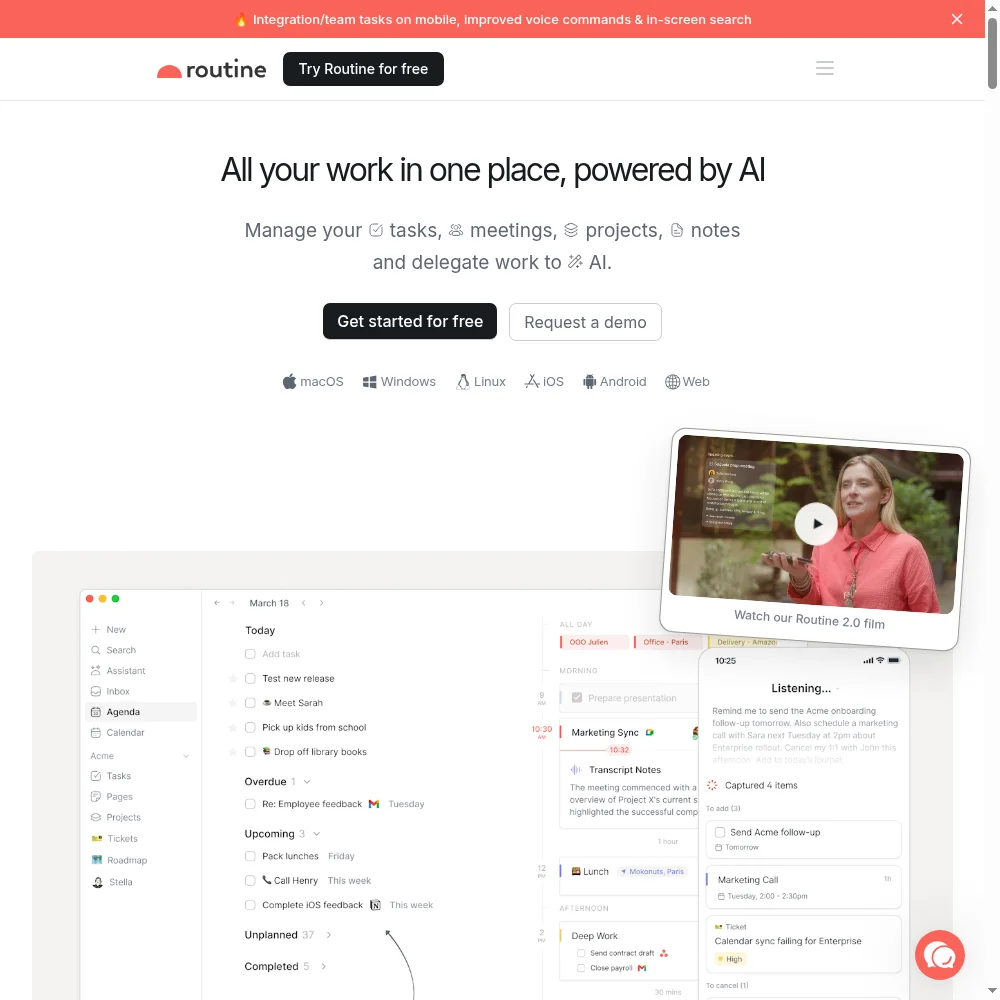
Routine is a productivity app built by a small Paris-based team (the company is Routine, founded by Ambroise Faure Dubayle and David Giboin). Its core bet is that the way you currently work — calendar in one app, tasks in another, notes in a third — is broken not because any of them is bad, but because they never talk. Routine collapses all three into one window: a calendar on the right, a task list on the left, and a notes pane that opens when you click anything.
The differentiator is what the team calls custom objects. Most task managers treat every task as a flat line item. Routine lets you define your own object types — a Contact, a Project, a Company — and then link tasks, meetings, and notes to those objects so everything has context. Schedule a meeting with “Acme Corp,” and the meeting note, the follow-up task, and the contact record all sit on the same linked page. It’s closer to a mini-notion inside a calendar than to Todoist inside a calendar.
Underneath it’s local-first: your data lives on the Mac first and syncs when it can, which is why offline mode actually works (more on that later). It syncs Google Calendar and iCloud, integrates with GitHub, Linear, Slack, and a handful of dev tools, and ships an AI assistant with voice commands and AI meeting notes — but, unlike Reclaim or Motion, it does not automatically re-arrange your day. You move the blocks; Routine just gives you a fast, pretty place to move them.
Who This Is For (and Who Should Skip It)
- ✅ Mac-first knowledge workers who want one window instead of three. If your dock has Calendar, Things/Todoist, and Notes all pinned and you’re sick of alt-tabbing between them, Routine collapses the three into a console that feels native to macOS. This is the sweet spot.
- ✅ Developers and product people who live in command bars. The keyboard-first capture and the GitHub/Linear integrations are built for you. If you’d rather type “T fix login bug tomorrow 3pm” than click through three menus, you’ll feel at home.
- ✅ People who want a real free tier to test the habit. Unlike most tools in this category that gate everything behind a trial, Routine’s free plan gives you tasks, calendars, notes, the AI assistant, and 250 AI credits a month — enough to actually use it for a month before paying.
- ❌ People who want AI to reschedule their day automatically. This is the single biggest expectation mismatch. Routine will not move your 2pm deep-work block to 4pm when a meeting overruns. If that’s the feature you’re paying for, look at Reclaim.ai or Motion instead.
- ❌ Windows or Android-first users. The Mac app is the polished product. The Windows client lags in features and the Android app is an afterthought. If you switch machines often, you’ll notice the gap every time you sit down at a non-Apple device.
- ❌ Teams that need mature shared planning and SSO today. The Business tier adds workspaces and access control, but the team-collaboration layer is newer and thinner than what Notion, Height, or Linear already offer. It’s heading there, but it’s not there yet.
Score Breakdown
I scored Routine across five dimensions: features, ease of use, value, support, and integrations. The 4.2 on features reflects the genuinely polished console — tasks, calendar, notes, custom objects, and the command bar all coexist without feeling bolted together. The 3.8 on ease of use is the custom-object learning curve: on day one I stared at a blank database I didn’t ask for and had no idea how to make it useful. By day four I did, but the ramp is steeper than a plain to-do app.
Value lands at 4.2 because the free tier is real and the $5 Personal on-ramp is cheap for the category — but the upper tiers are where the AI credits start to sting. Overall it lands at 3.9 / 5. That’s a “strong try-it-on-the-free-tier, buy Personal if it clicks” score. The missing 1.1 is auto-rescheduling, the non-Mac clients, and the AI credit meter.
What Actually Matters: Features, Reviewed
⌘ The command bar and keyboard-first capture
This is the heart of the product, and it’s why people who love Routine are evangelical. Press a shortcut (I rebound mine to Cmd+J), type “review PR #412 tomorrow at 2pm,” and it appears on the right calendar day with the GitHub link attached. No app switching, no manual date picking. I started capturing things as fast as I thought them — which, for a software engineer, is exactly how tasks should work. The capture stopped being the bottleneck.
The AI voice commands are a nice bonus: I’d trigger the command bar, say “remind me to follow up with Sarah in three days,” and it would parse the date and context. It worked about eight times out of ten, which is better than I expected for a feature that usually feels like a demo gimmick.
🔗 Custom objects that actually link meetings to tasks
This is the feature I was most skeptical of going in, and the one I changed my mind on fastest. I created a “Contact” object for each person I work with, and a “Project” object for each codebase. From then on, when a meeting with the Acme team showed up on my calendar, I could attach it to the Acme project object, and every related note, follow-up task, and design doc collected on one page. Before this, that context lived across five apps and I lost it every time.
The catch is the setup cost. On day one, the default database view is empty and the object-creation UI is tucked behind a menu that feels hidden. I spent an hour reading docs before it made sense. A G2 reviewer echoed this: “Powerful, but I felt like I was setting up a small database on day one instead of checking off tasks.” If you want flat lists, this is friction. If you want context-rich work, it’s worth the hour.
📅 Offline mode and the local-first feel
I tested this on a flight. I flipped on Airplane mode, opened Routine, and everything — calendar, tasks, notes — loaded instantly. I added tasks, scribbled meeting notes, and rearranged my next week’s plan, and the moment I landed and got wifi, it synced cleanly. No spinner, no “you’re offline” banner, no lost edits. Most “cloud” productivity apps fall flat the second your connection drops; Routine doesn’t, because the Mac is the source of truth and the cloud is the backup.
This sounds like a niche feature until you’ve had a calendar app refuse to open on a spotty coffee-shop wifi. It’s the reason the app feels fast even when Google Calendar is being slow — the UI never waits on the network. It’s also why the Windows client is such a letdown by comparison: none of that local-first speed translates to the browser-based port.
🤖 AI meeting notes — and the credit meter you’ll watch
The Professional tier turns on AI meeting notes: it listens to your calendar events, joins (or records locally), transcribes, and drops a summarized note on the linked meeting page. I ran it through two dozen real calls — standups, 1:1s, a customer demo. The summaries were genuinely good: it pulled action items and assigned them as tasks automatically, which meant I stopped leaving meetings with a notebook full of scribbles I’d never revisit.
But here’s the catch I can’t skip: the Professional plan gives you 7,000 AI credits a month, and a 30-minute meeting eats a noticeable chunk. After two weeks of back-to-back calls, I was at 40% of my monthly budget with half the month left. I started skipping the recorder on low-value meetings just to save credits. A Capterra reviewer put it bluntly: “The AI notes are excellent until you realize you’re rationing them.” If you take 10+ meetings a day, budget for the Business tier’s 10,000 credits per seat or accept that you’ll be selective.
🚫 The thing it won’t do: automatic rescheduling
I want to call this out explicitly because it’s the most common disappointment. I set up a 2-hour deep-work block on Wednesday at 10am, then a customer meeting got moved into that slot. In Reclaim or Motion, the deep-work block would have slid to the next free window automatically. In Routine? It just sat there, overbooked, and I had to drag it myself. The calendar didn’t yell. The app didn’t suggest alternatives. I was the planner, and that’s it.
This is a deliberate design choice — the team positions Routine as a console, not an autopilot — but it means if your calendar is chaotic and you want software to absorb the chaos, Routine won’t. It gives you a gorgeous view of your day and fast tools to rearrange it. It doesn’t rearrange it for you. Know that going in.
Pricing (and who should pick which tier)
Routine is unusually generous on the way in: there’s a forever-free plan that includes tasks, calendars, notes, the AI assistant, voice commands, offline mode, 3 integrations, 3 custom databases, and 250 AI credits a month. That’s not a trial — it’s a real product you can live on. Paid plans are per user, billed monthly or annually, and the jump from $5 to $10 is where the AI meeting notes and unlimited integrations turn on.
| Plan | Price | What You Get |
|---|---|---|
| Free | $0 forever | Tasks, calendars & notes; AI assistant; AI voice commands; offline mode; 3 integrations; 3 custom databases; 250 AI credits/mo |
| Personal | $5/user/mo | Everything in Free plus time blocking, time boxing, event coloring, exporting, unlimited uploads, 10 integrations, 10 custom databases, 500 AI credits |
| Professional | $10/user/mo | Everything in Personal plus AI meeting notes, AI agents, AI automations, menu bar widget, time tracking, contextual capture, unlimited integrations, unlimited custom databases, 7,000 AI credits |
| Business | $15/seat/mo | Everything in Professional plus organization, workspaces, access control, versioning, consolidated billing, priority support, 10,000 AI credits/seat |
| Enterprise | Contact sales | Everything in Business plus unlimited history, compliance, audit logs, analytics, user provisioning, dedicated success manager |
Which should you pick? Start on Free. It’s enough to see whether the command-bar muscle memory sticks. If you use it daily for two weeks and want time blocking, event coloring, and exports, the $5 Personal tier is a no-brainer — it’s cheaper than a single coffee a month. Upgrade to $10 Professional only if you actually take enough meetings to justify AI notes, and keep an eye on the credit meter. The $15 Business tier is for teams that need workspaces and access control; solo users don’t need it.
The Unfiltered Pros & Cons
One framing before the list: Routine’s strengths and weaknesses are the same design philosophy. It’s a fast, local-first, Mac-native console — which means it’s beautiful and quick, but also that it doesn’t try to be your autopilot, and it doesn’t bother being great on every other platform.
Pros
- ✓ Best-in-class single-window console for tasks + calendar + notes on macOS
- ✓ Fast command-bar capture and keyboard-first weekly planning
- ✓ Custom objects (contacts, projects) that genuinely link tasks to meetings
- ✓ Genuinely usable free tier and a $5 Personal on-ramp
- ✓ Offline mode and local-first feel even when your calendar is flaky
Cons
- ✗ No automatic task rescheduling — you are the planner, not the passenger
- ✗ Windows and Android clients lag the Mac app in features and polish
- ✗ AI features are metered by credits; heavy meeting-note users burn through them
- ✗ Custom-object model has a real learning curve on day one
- ✗ Frequent UI changes as the team pivots toward team and AI features
Final Verdict
Routine is the most polished single-window console on macOS for tasks, calendar, and notes, with a fast command bar, linked meeting notes, and a usable free tier. The trade-offs are no automatic task rescheduling, Mac-first clients that lag on Windows and Android, and an AI credit meter that heavy meeting-notes users will watch burn.
Here’s the 30-second decision method. First: are you on a Mac, and do you currently keep calendar, tasks, and notes in three separate apps? If yes, Routine’s entire reason for existing applies to you. Second: do you want software to automatically reschedule tasks around meeting chaos, or are you happy planning your own day in a really fast window? If you’re the planner, Routine is excellent. If you want to be a passenger, go to Reclaim or Motion.
If both answers point the right way, start on the free tier — it’s the most credible free entry in this category — and give the command bar two weeks. If the muscle memory clicks, the $5 Personal tier is one of the easiest upgrades to justify I’ve seen. Just don’t expect it to rearrange your Tuesday when a meeting gets moved, and don’t expect the Windows app to feel like the Mac one. It’s a console, not an autopilot, and that’s a fine thing to buy as long as you know it.
Frequently Asked Questions
Is Routine the same product as the baseball brand at routine.com?
No. The app we reviewed lives at routine.co. Routine.com is an unrelated apparel company that sells baseball clothing — don’t confuse the two, or you’ll end up ordering a hoodie instead of signing up for a productivity console. The official site is routine.co.
Does Routine automatically reschedule tasks when meetings change?
No, and this is the most common expectation mismatch. Routine is a console: it gives you a fast, pretty window to move tasks and blocks around yourself. It won’t auto-shift a deep-work block to a free afternoon when a meeting overruns. If automatic rescheduling is the feature you want, look at Reclaim.ai or Motion instead.
Is the free plan actually usable?
Yes, unusually so. You get tasks, connected calendars, notes, the AI assistant, voice commands, offline mode, 3 integrations, 3 custom databases, and 250 AI credits a month. It’s enough to run a real personal week. Most people upgrade for time blocking, unlimited integrations, and AI meeting notes — not because the free tier is crippled.
Does Routine work on Windows and Android?
The Windows client exists but trails the Mac app in features and polish — it’s not local-first, so it feels slower and less integrated. The Android app is even more limited and is best treated as a capture companion. Routine is unambiguously a Mac-first product; if you switch machines often, you’ll feel the gap.
How fast do AI credits burn on the paid plans?
On the $10 Professional tier you get 7,000 credits a month, and AI meeting notes are the biggest consumer. If you take 10+ recorded meetings a week, you can burn through them in under three weeks. Heavy meeting-notes users should plan for the Business tier’s 10,000 credits per seat or selectively record only high-value calls.
User feedback sourced from G2 and Capterra reviews.
About the Author